Using Upland Credential Manager
Upland Credential Manager (UCM) allows you to use single sign-on for access to Mobile Commons and other Upland Software, Inc products. It can be used as a standalone authentication mechanism or as a gateway to another SSO provider.
To connect your provider to UCM, you will need to contact UCM support with details of:
-
The implementation provider and SSO connection type, e.g. SAML.
-
Certificates, URLs and parameters to be added into Auth0.
In return credentials from UCM will be given back to add into your identity provider.
When configured, you will be able to set UCM authentication for your users.
Sign in for All (UCM and Non-UCM) Users
For Non-UCM Users:
Go to the Mobile Commons sign in page.
-
Enter your email address. Click SUBMIT.
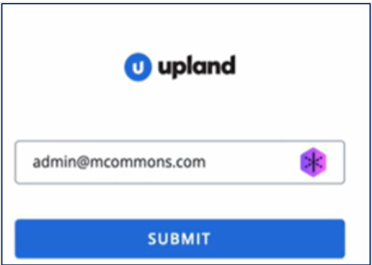 Note: The above screen will appear for all the users regardless of whether a company is enabled for UCM or not.
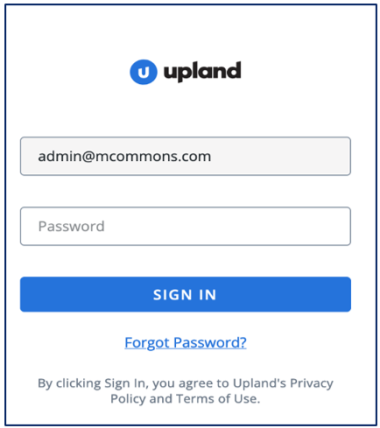
Users will see the standard sign in screen for the first time. For the users who have not been migrated to UCM, the standard sign in screen will be displayed (as shown below), with the user's email address pre-populated.
-
After entering your credentials on the standard sign-in screen, click SIGN IN to access Mobile Commons.
For UCM Users:
After configuring and enabling UCM for a company, the existing users will be automatically migrated to UCM on their first sign-in attempt, and they will receive an email from UCM to set their password for UCM.
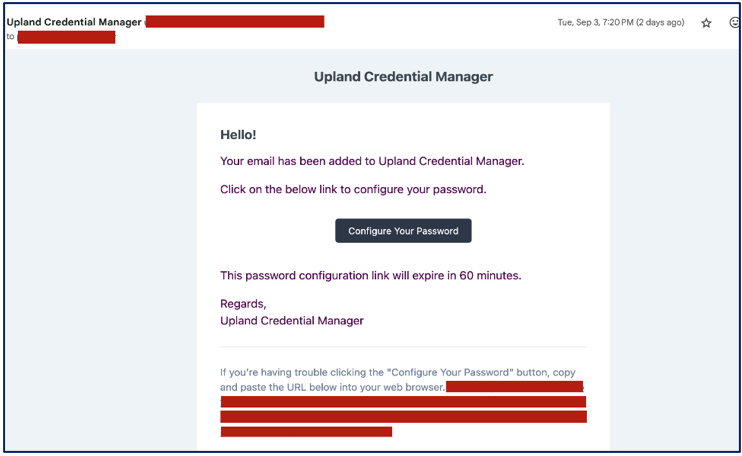
Once users sign in after being migrated to UCM, they will be redirected to the UCM sign in screen. Users need to enter their Upland credentials created on the UCM platform to authenticate.
To sign in with Upland Credential Manager (UCM), go to the Mobile Commons sign in page.
-
Enter your email address. Click SUBMIT.
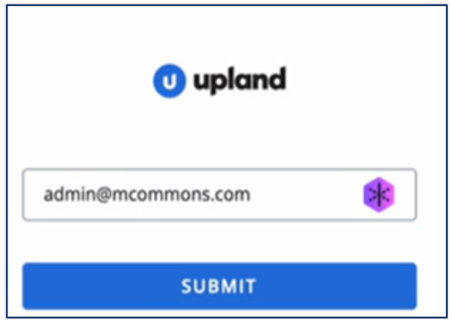
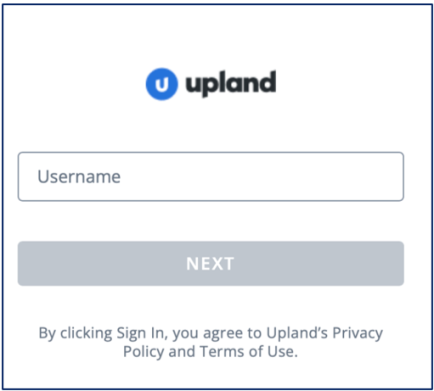
Upon entering the email address in the above screen, users who have been migrated to UCM will be presented with the following UCM sign in screens where they can enter their UCM credentials created on the UCM platform.
-
Enter an email address. Click NEXT.
-
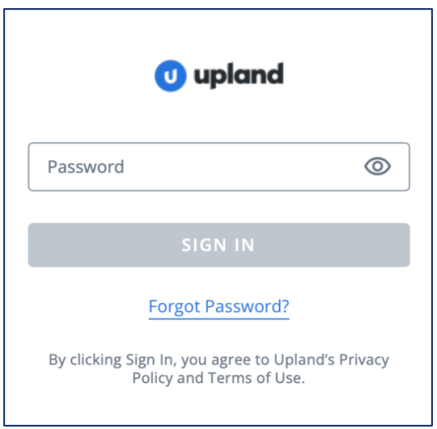
On the following screen, provide your password. Click SIGN IN to access Mobile Commons.
If a company has Multi-factor Authentication (MFA) enabled on UCM, the following screen will appear after entering the password above. Choose a verification method from the available options, then click NEXT.
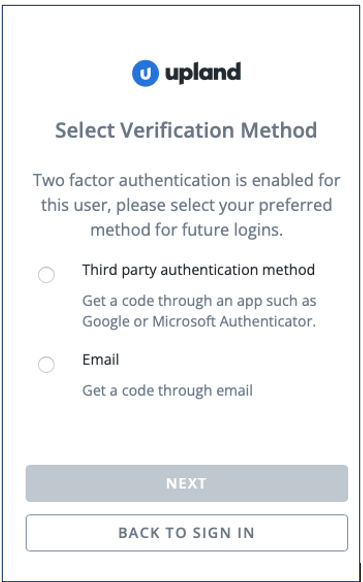
Depending on your selected verification method, you will be required to enter the verification code received in the following screen.
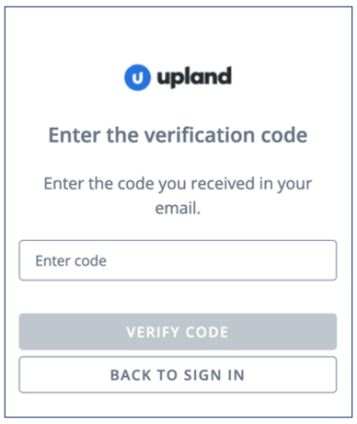
Click VERIFY CODE to verify the received code. If the code is verified, you will be able to access Mobile Commons.
Resetting UCM Password
If you forget your UCM password, you can reset it. To reset your UCM password:
-
Go to the Mobile Commons sign in screen, enter an email address. Click SUBMIT.
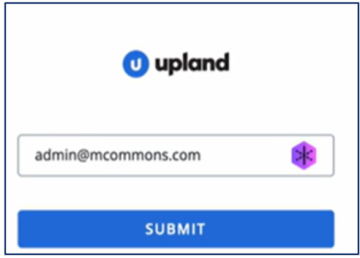
If a user is migrated to UCM, the following sign in screens appear.
-
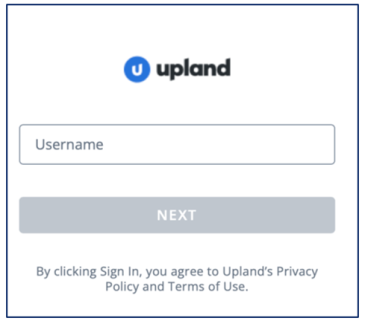
Enter an email address. Click NEXT.
-
On the following screen, click Forgot Password.
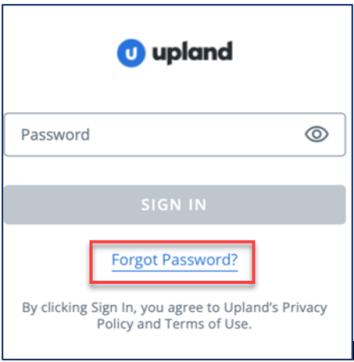
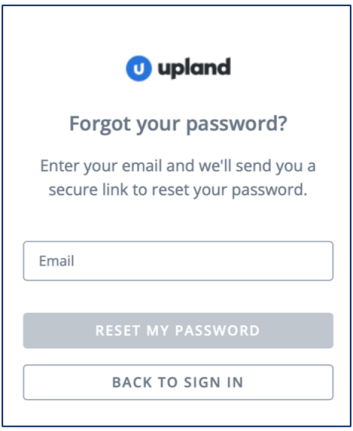
The screen to reset your password opens.
-
Enter your email address. Click RESET MY PASSWORD.
-
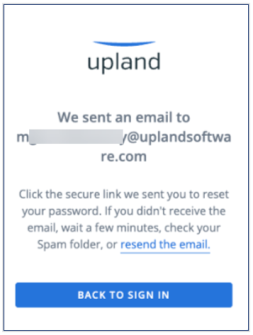
In your email, open the message from Mobile Commons. Click the unique, one-time Reset Password link. The password reset screen opens.
-
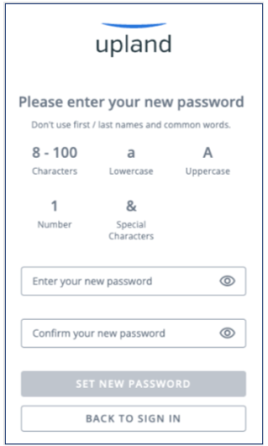
Enter a new password, making sure that it meets the password criteria displayed on the password reset screen.
-
Click SET NEW PASSWORD to set a new password.
Generating a New Token for Accessing Mobile Commons via API (For UCM Migrated Users)
If you are a company user who has migrated to UCM and is using an API to access Mobile Commons, please note that you need to generate a new bearer token. This token can then be used with any API tool you use to access Mobile Commons.
To generate a new token, go to Your Profile > My Account.
-
Click Generate New Key available under API Key.
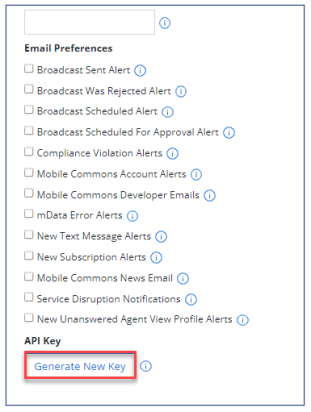
The following message appears once you click Generate New Key.
Note: If you generate a new token, it will invalidate any existing token. The authentication token will be displayed only once. Store this key securely in a private location and avoid sharing it publicly. The Generate New Key button will be disabled for 10 seconds after a new token generation.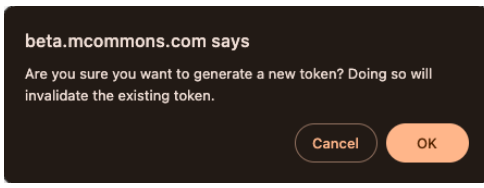
-
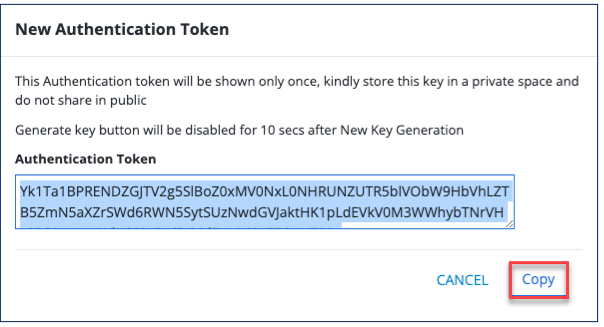
Select OK if you want to generate a new token. A new token will be generated.
-
Click Copy to copy the generated token.